
Artificial intelligence has become part of everyday design work. It helps designers create concepts, test ideas, improve images, and finish projects in less time. Most AI tools work through a browser, which means your prompts and files are uploaded before anything happens. That process works well for many people, but it is not the only way to create with AI.
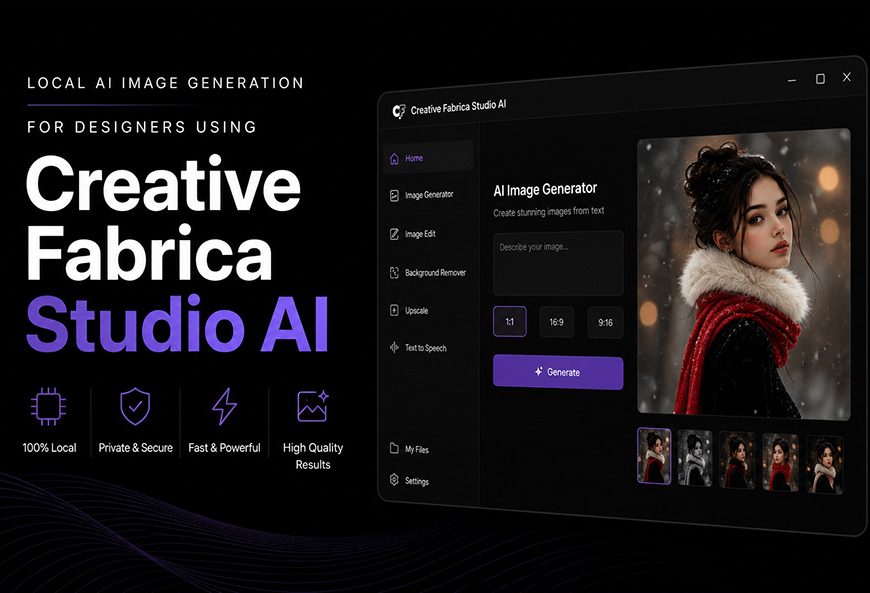
Creative Fabrica Studio AI takes a different approach. Instead of relying on cloud processing, the application runs many AI features directly on your own computer. You install the software once, open it whenever you need it, and begin creating without moving between different websites. The latest version also brings much stronger image generation, High Quality Rendering, and more than fifteen built-in LoRAs that make it easier to produce artwork in different styles.
For graphic designers, illustrators, content creators, and small business owners, this means one application can handle several creative jobs. You can generate AI images, remove backgrounds, upscale older graphics, and even convert text into speech while keeping your projects on your own machine. If you spend part of your day creating visual content, this update can fit naturally into your workflow.
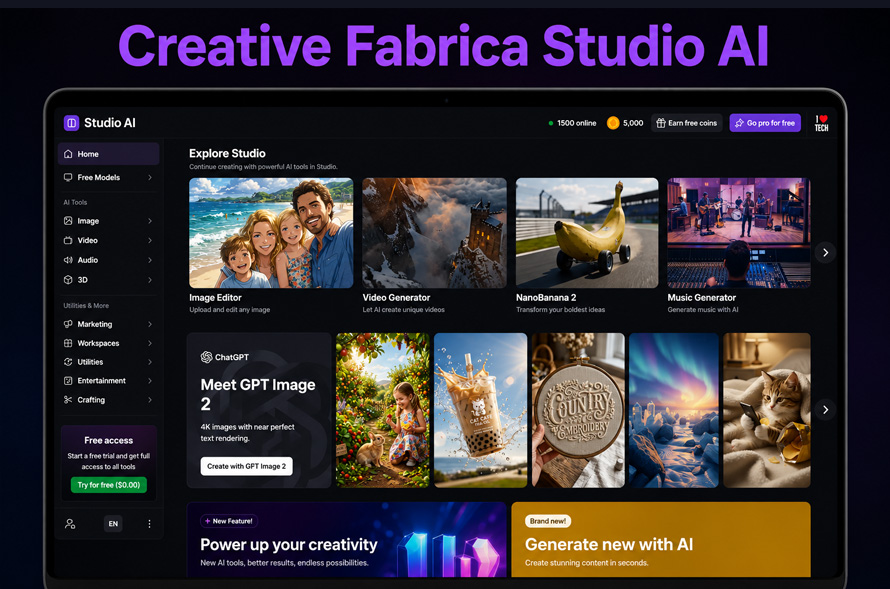
Why Local AI Is Becoming a Better Choice for Creative Work
Many designers have become used to opening a browser whenever they need AI. They upload a photo, enter a prompt, wait for processing, download the result, and then move to another application for the next step. It gets the job done, but repeating that process several times during the day can interrupt your creative flow.
Local AI changes that experience. Since Creative Fabrica Desktop performs its work on your own computer, you spend less time moving files between different online services. Your images remain where you created them, and your prompts stay with your project instead of being sent to remote servers during local processing.
Imagine you are creating social media graphics for a coffee shop. You need five different promotional images before lunch. Instead of opening multiple browser tabs, uploading photos, and waiting for each task to finish, you launch one application and complete everything in one place. That simple change keeps you focused on designing rather than managing files.
Many designers also appreciate knowing that client concepts, logo drafts, packaging ideas, and unfinished artwork stay on their own computer while they work. For freelance projects, that extra level of privacy can make daily work feel much more comfortable.
High Quality Rendering Makes Your Ideas Look More Professional
One of the biggest improvements in the newest version of Creative Fabrica Desktop is the updated image generation system. Instead of giving you only one rendering option, the application now includes both Low Quality Rendering and High Quality Rendering. Each one serves a different purpose, which makes the creative process much smoother.
Low Quality Rendering is useful when you are still exploring ideas. You might test several prompts, experiment with different lighting, or change the composition before deciding which version deserves more attention. Since these preview images are generated faster, you can compare several concepts without spending much time waiting.
Once you have found the direction you like, switching to High Quality Rendering produces a much cleaner result. Small details become sharper, textures appear more natural, and the overall image looks ready for presentations, websites, or printed materials. You spend less time correcting small problems because the AI creates a stronger starting point.
For example, if you are designing a hero image for a travel website, you can first generate several landscape ideas in Low Quality mode. After choosing the strongest composition, you create the final version using High Quality Rendering. Instead of editing every small detail afterward, you begin with an image that already looks polished and ready for your project.
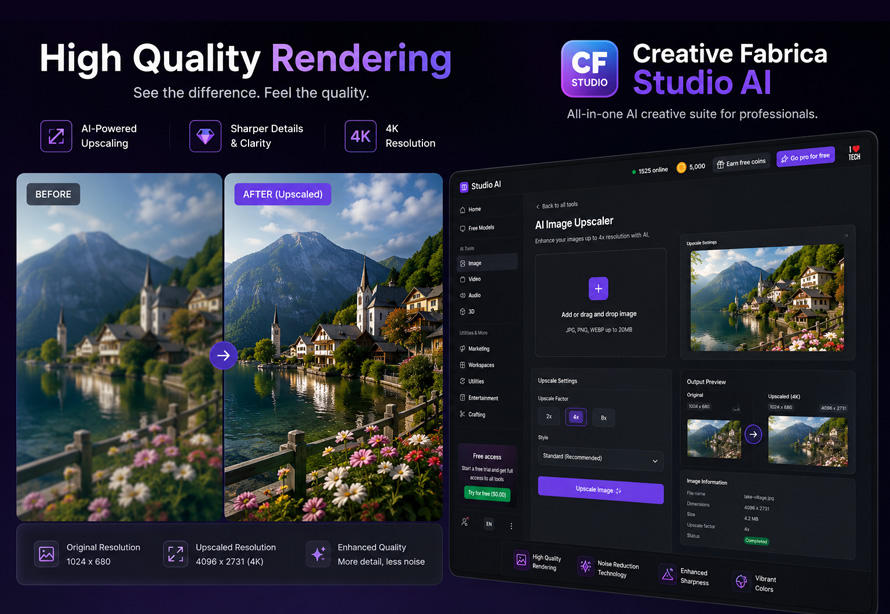
Low Quality Rendering vs High Quality Rendering
| Feature | Low Quality Rendering | High Quality Rendering |
| Best For | Testing prompts and creative ideas | Final artwork and publishing |
| Rendering Speed | Faster | Slightly longer |
| Image Detail | Basic details | Sharper textures and finer details |
| Lighting | Standard | More realistic and balanced |
| Best Use | Brainstorming and concept drafts | Blog graphics, posters, websites, presentations, social media, and print |
Built-in LoRAs Give You More Creative Styles Without Extra Downloads
Another feature that makes the latest version stand out is support for built-in LoRAs. If the term sounds unfamiliar, the idea is actually simple. A LoRA teaches the AI a new artistic style or visual concept without changing the main AI model. You can think of it as giving the AI another creative skill that you can switch on whenever you need it.
Creative Fabrica Desktop includes more than fifteen LoRAs, so you can start experimenting immediately after installation. You do not need to spend time searching for additional files before creating your first project. If one client prefers soft watercolor artwork and another wants bold comic-style illustrations, you simply choose a different LoRA before generating the image.
This becomes especially useful when you want several graphics to share the same visual style. A children’s activity book, a set of printable stickers, or a collection of greeting cards all benefit from a consistent look. Using the same LoRA across the project helps the artwork feel connected from the first page to the last.
Another practical example is branding. A local bakery might need menu graphics, social media posts, and promotional posters. By using the same style throughout the project, every design feels like part of the same brand instead of looking like separate pieces created on different days.
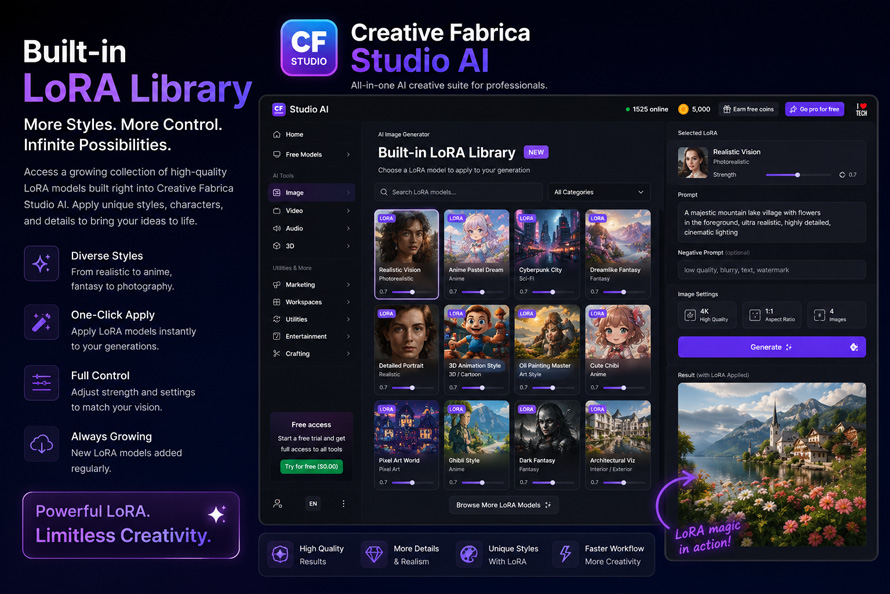
Popular Built-in LoRA Styles
| Built-in LoRA | Great For |
| Realistic | Product photography, websites, marketing graphics |
| Fantasy | RPG artwork, book covers, game environments |
| Comic | Posters, YouTube thumbnails, comic illustrations |
| Watercolor | Greeting cards, children’s books, invitations |
| Anime | Character artwork and fan art |
| Interior Design | Room concepts and mood boards |
| Digital Painting | Concept art and social media graphics |
From AI Image to Finished Design Without Leaving the App
Creating an image is only one step in most design projects. After the artwork is generated, there are usually a few more tasks before it is ready to share. You may need to remove the background, improve the image size, or prepare it for a presentation or social media post. Switching between different websites for each task can slow you down and create extra files that are difficult to manage.
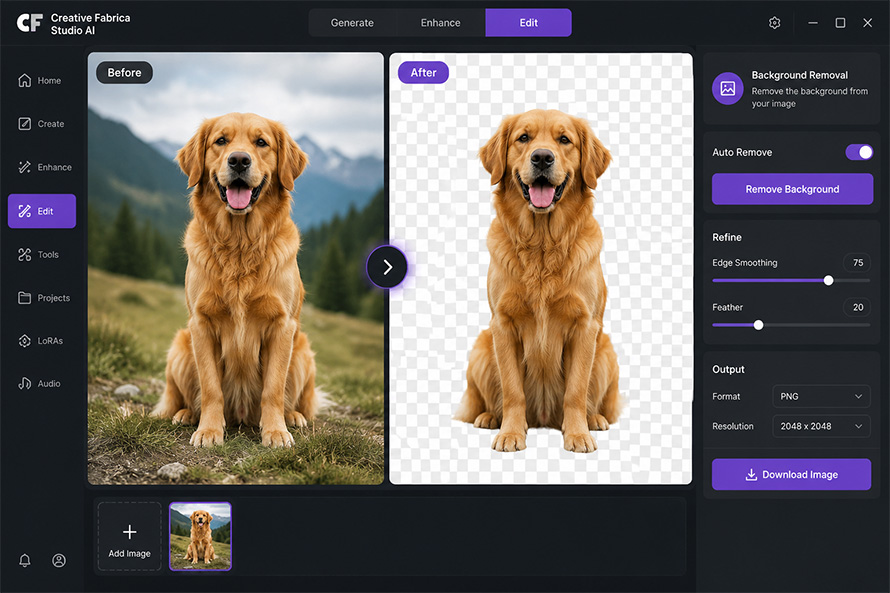
Creative Fabrica Desktop brings these tools together in one workspace. After generating an image, you can remove the background with a few clicks and continue working without exporting the file to another service. If the image needs to be larger for a website banner or printed flyer, the built-in upscaler can improve its resolution while keeping the details much cleaner than a simple resize.
The application also includes text-to-speech. If you are creating a short product video or an online tutorial, you can turn your written script into spoken audio without opening another program. Having these features together helps you move from the first idea to the finished project without breaking your workflow. You spend more time creating and less time managing different tools.
A Complete Design Workflow Using Creative Fabrica Desktop
Let’s look at a simple project that many designers can relate to.
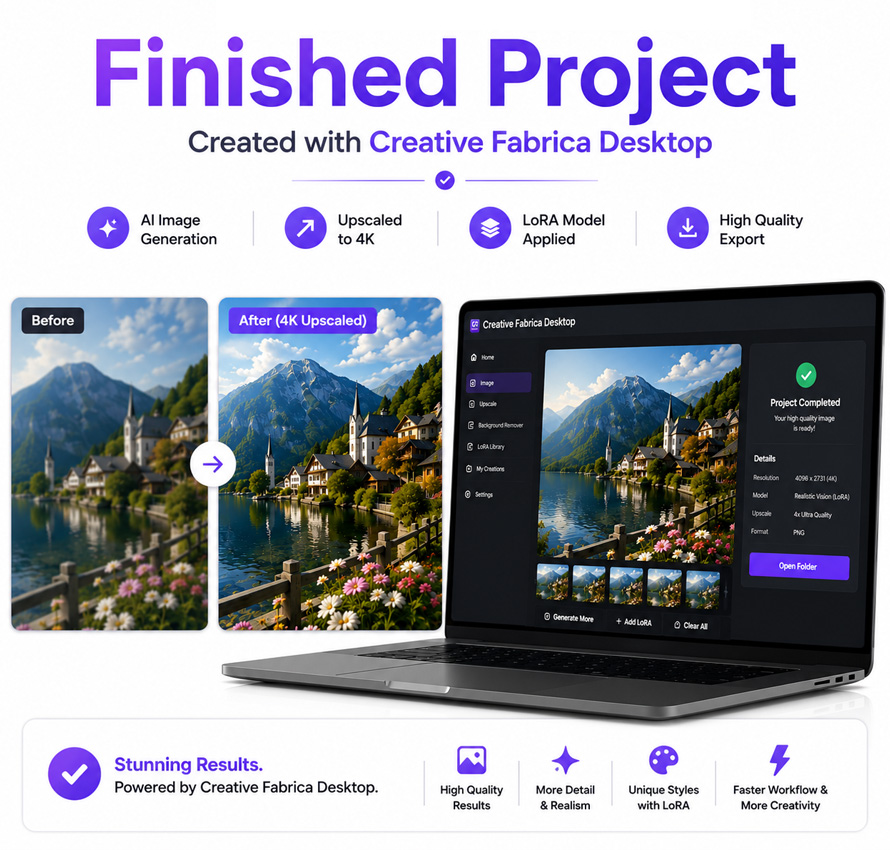
Imagine a local restaurant asks you to create promotional graphics for a weekend food festival. The client wants a website banner, an Instagram post, a printed poster, and a short video for social media. Normally, this could mean using several different applications before everything is finished.
You begin by writing a prompt for an inviting outdoor food market with warm lighting and happy customers. First, you generate a few quick drafts using Low Quality Rendering to compare different ideas. After choosing your favorite composition, you switch to High Quality Rendering to create the final version with better detail and lighting.
Next, you use one of the built-in LoRAs to give the artwork a hand-painted look that matches the restaurant’s branding. Once the image is ready, you remove the background from a featured dish so it can be placed on the poster. The finished artwork is then upscaled for large-format printing.
The restaurant also wants a short promotional video. Instead of recording a voiceover, you type a short script into the text-to-speech tool and create narration for the video. By the end of the project, you have completed several creative tasks inside one application instead of moving files between multiple online services.
Who Will Get the Most Value from the Desktop App?
One of the best things about Creative Fabrica Desktop is that it is not limited to one type of creator. Professional designers can use it to speed up concept work, prepare marketing graphics, or create illustrations for clients. Since the latest version produces stronger AI images and supports built-in LoRAs, it also becomes a useful tool for developing different visual styles without searching for extra resources.
Small business owners can benefit as well. Instead of hiring someone for every social media graphic, they can create promotional images, improve product photos, and prepare seasonal advertisements from one application. Teachers can design classroom materials, worksheets, and presentation graphics. Bloggers can produce original illustrations instead of relying on stock images for every article.
Freelancers may find it especially useful because many projects involve repeated editing tasks. One day you might be creating product images for an online shop. The next day you may need blog graphics, YouTube thumbnails, or printable designs. Having image generation, background removal, image upscaling, and text-to-speech together helps simplify those daily jobs. Even if you are just beginning to explore AI tools, the desktop application is easy to learn because everything is organized in one place.
Why This Update Stands Out
Many AI tools focus on one feature. You generate an image in one place, remove the background somewhere else, and improve the resolution with another service. That approach works, but it often means opening several browser tabs and keeping track of different files.
Creative Fabrica Desktop brings those common tasks together while running on your own computer. The latest version adds stronger local image generation, High Quality Rendering, and more than fifteen built-in LoRAs that let you create artwork in different styles without extra downloads. The ability to work locally also means your creative process stays with you, making it easier to focus on designing instead of managing uploads and downloads.
If you regularly create graphics for websites, marketing campaigns, social media, presentations, or digital products, having these features inside one application can make everyday work much simpler. The Creative Fabrica Desktop Studio App combines AI image generation, background removal, image upscaling, and text-to-speech in a single desktop workspace, giving you a practical way to create high-quality visual content while keeping your projects on your own computer.






[…] of its biggest advantages is that several powerful features, including AI Remove Background and AI Image Upscaler, are available for free. This makes it an excellent choice for beginners as well as professionals […]